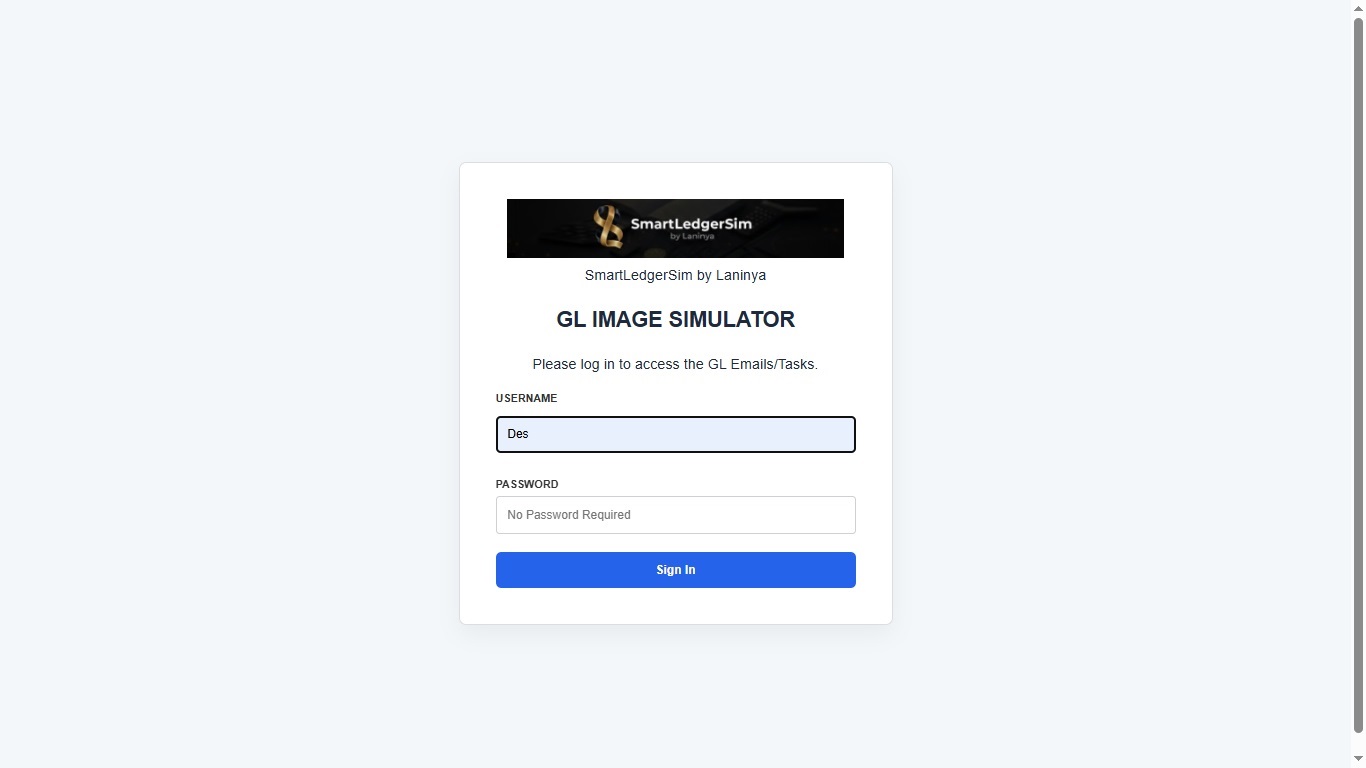
GL Image Simulator
📘 Quick Reference: 2026 Simulator Operations
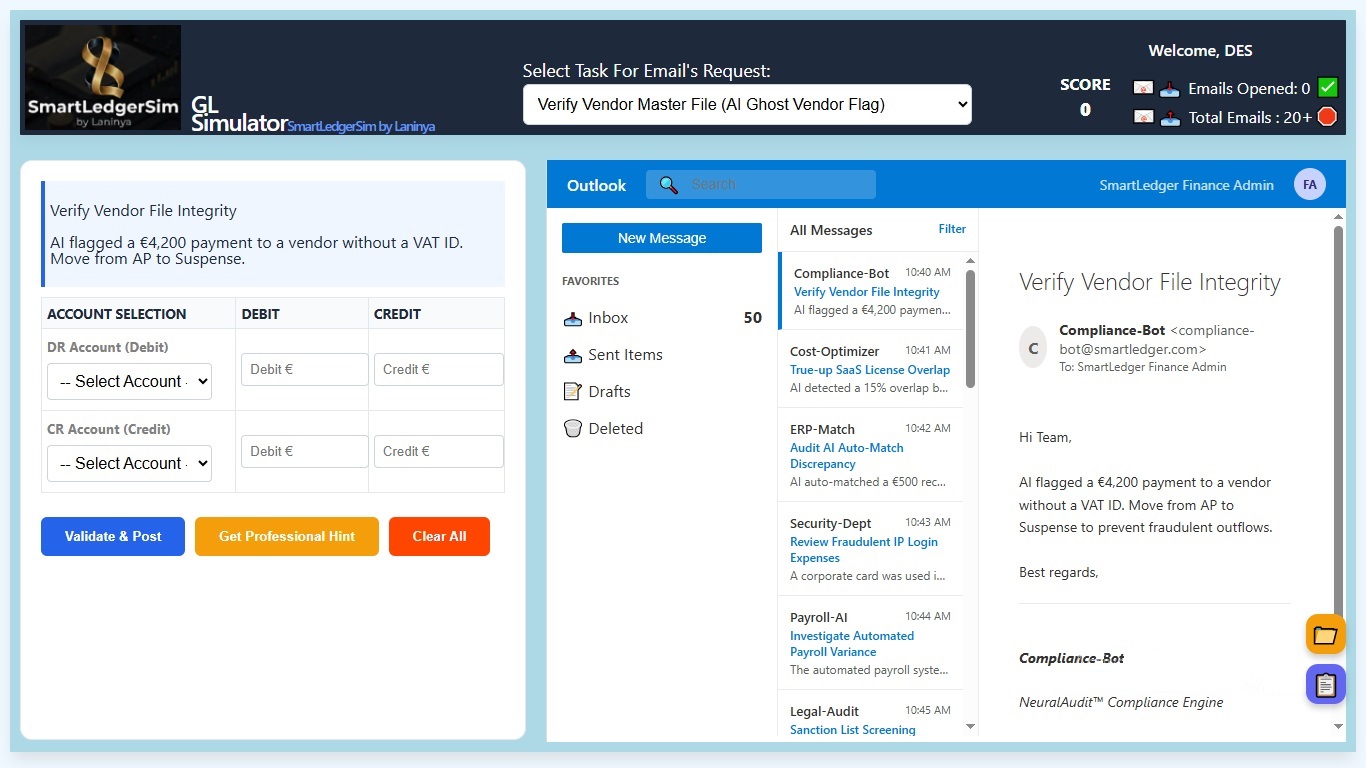
1. Navigate the Daily Tasks
Use the navigation bar. Each section represents a specific accounting cycle (Audit, Revenue, ESG, Treasury, etc.). Click a dropdown and select a task to load the case details into your work area.
2. Consult the Documentation
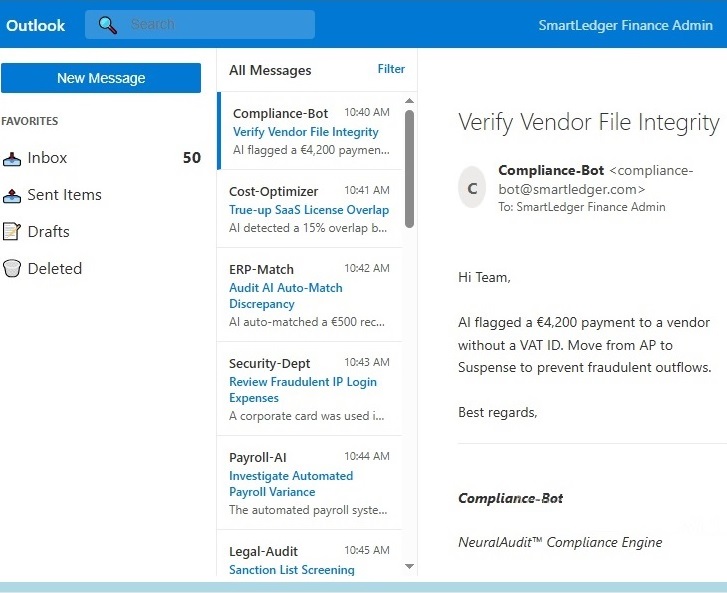
Before recording an entry, click the Document Library (Orange Icon). Match your task ID with the relevant sub-ledger:
AI_Risk / BRAI_Sync: Use for audit alerts and AI-driven ledger corrections.
FX_Feed / Crypto: Check here for live 2026 exchange rates (JPY/EUR) and USDC/BTC settlement data.
Invoices: Reference this for VAT rates (23% domestic) and EU reverse charge rules.
3. Recording Entries
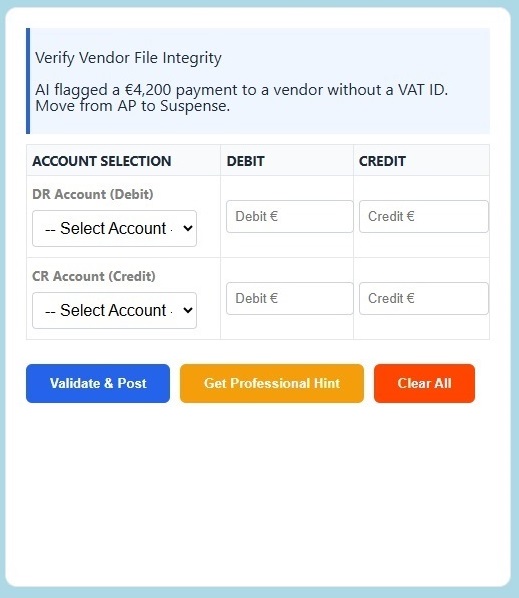
Journal Tables: Enter the Account Name exactly as it appears in the Chart of Accounts. Ensure your Debits equal your Credits for IFRS compliance.
Reclassification Forms: Used for high-level adjustments. Enter the target account and the total absolute value.
4. Validation & Professional Feedback
Once your entry is complete, click "Verify Task."
✅ Success: 50 points awarded. Your entry is posted to the 2026 General Ledger.
❌ Rejected: Review your VAT calculations or check if you used the wrong side of the ledger (Debit vs. Credit).
5. Training Limits
The Free Trial includes 5 validated tasks. After reaching this limit, the 2026 Professional Paywall will appear. Proceed via the PayPal link to unlock the remaining 32 advanced scenarios.
💡 Pro-Tip for 2026 Compliance:
Always check the ESG Carbon Ledger for any task involving Scope 2 emissions or plastic tax levies to avoid non-compliance penalties in your final score.
Leave a comment
Log in with itch.io to leave a comment.